Song - Chords
Define the chord sheets of a song.
Chords
The chords section allow you to define multiple chord sheets. Thare is always a default chord sheet but you can define as many sheets as you need for your musicians on stage.
In the viewer every musician can set their preferred chord sheet. If it doesn't exit in a song the default sheet will be displayed.

To add a new chord sheet click on the "+" button next to the chord sheets drop down. You can then give it a name and start adding chords to it.
The grid
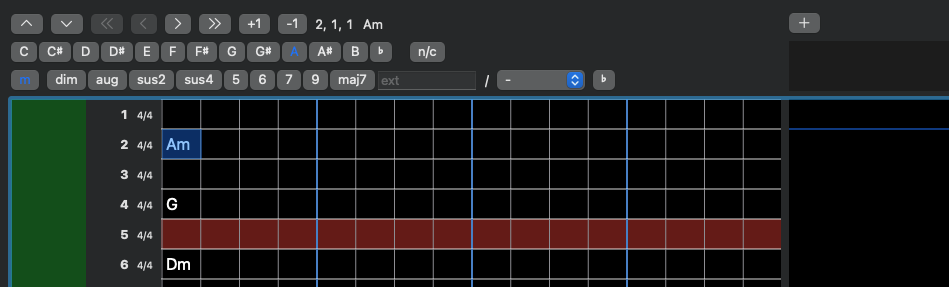
The chord sheet editor is a grid where each line represents a bar in the song. Within the bar you can position chords on the beats / sub divisions. The blue vertical lines indicates the beats. In a 4/4 bar you get a 16th note resolution.
The selected position or bar(s) is highlighted in blue. The current playing bar is highlighted in red. If you start the playbyack the red bar will move along in the song.
You can click in the grid to select a different position. Use the cursor keys to move around in the grid, or click the navigation buttons above the grid. The left and right arrows move the selection one beat to the left or right. Cmd + left/right move by a subdivision. The up and down arrows move the selection one bar up or down.
Editing Chord Sheets
Use the buttone above the grid to add or change a chord. You caa use keyboard shortcuts to add/edit chords as well:
- Type Ctrl and the chord letter
- Type Ctrl+Alt and the chord letter to add a sharp chord
- Type Ctrl+Shift and the chord letter to add/edit a bass note
- Type Ctrl+Shift+Alt and the chord letter to add/edit a sharp bass note
Cut, Copy & Paste
Within the chord sheet you can do the normal cut 'n' paste operations that you know from any text field. If you have one or more bars selected you can cut or copy them or replace them by pasting.
Drag & Drop
If you have a single position selected you can simply drag it to another position in the chord sheet.
Parts
On the left you see the parts you have defined. Between the parts there is a handle that you can drag up and down to change the length of a part. Chords and lyrics in the following parts will move relative to the change you are making in part lenght.
Linking
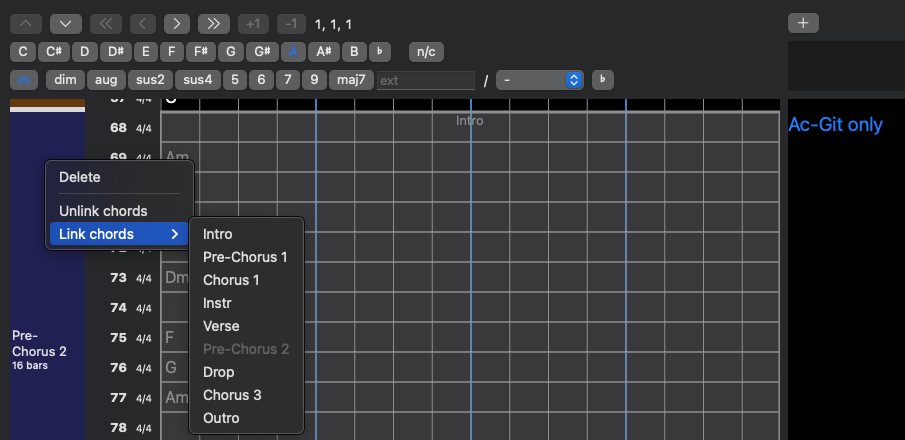
By right-clicking a part you open the context menu which lets you delete a part or link/unlink the chords of a part. So if the second chorus is like the first you can simply link it.
Comments
Just like in the lyrics section you can add comments to the chord sheets.