Viewer iOS/iPadOS
The iOS/iPadOS viewer.
The iOS viewer works on the iPhone and iPad (iOS 15 and later). On iPhones it only works in landscape mode.
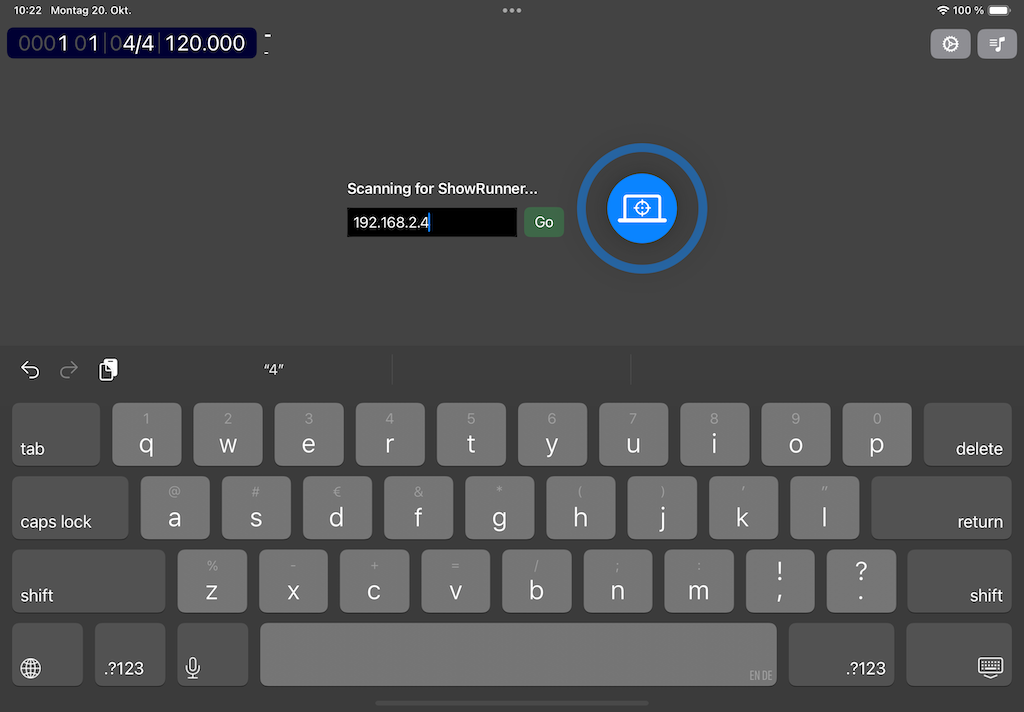
The viewers do connect to the ShowPulse instance in the network automatically. If you have multiple ShowPulse instances running in your network the viewers will connect to the first ShowPulse that respons. This feature requires Access to the local network. At first launch the view prompts you for permission the access the local network. You can change that any time in Settings App > Apps > ShowViewer.
If you don't grant that permission you will have to enter the IP address of the ShwoPulse instance manually. And hit the go button.
If your ShowPulse is not in the same network segment you can still connect by entering the IP address, if it is reachable from the viewer.
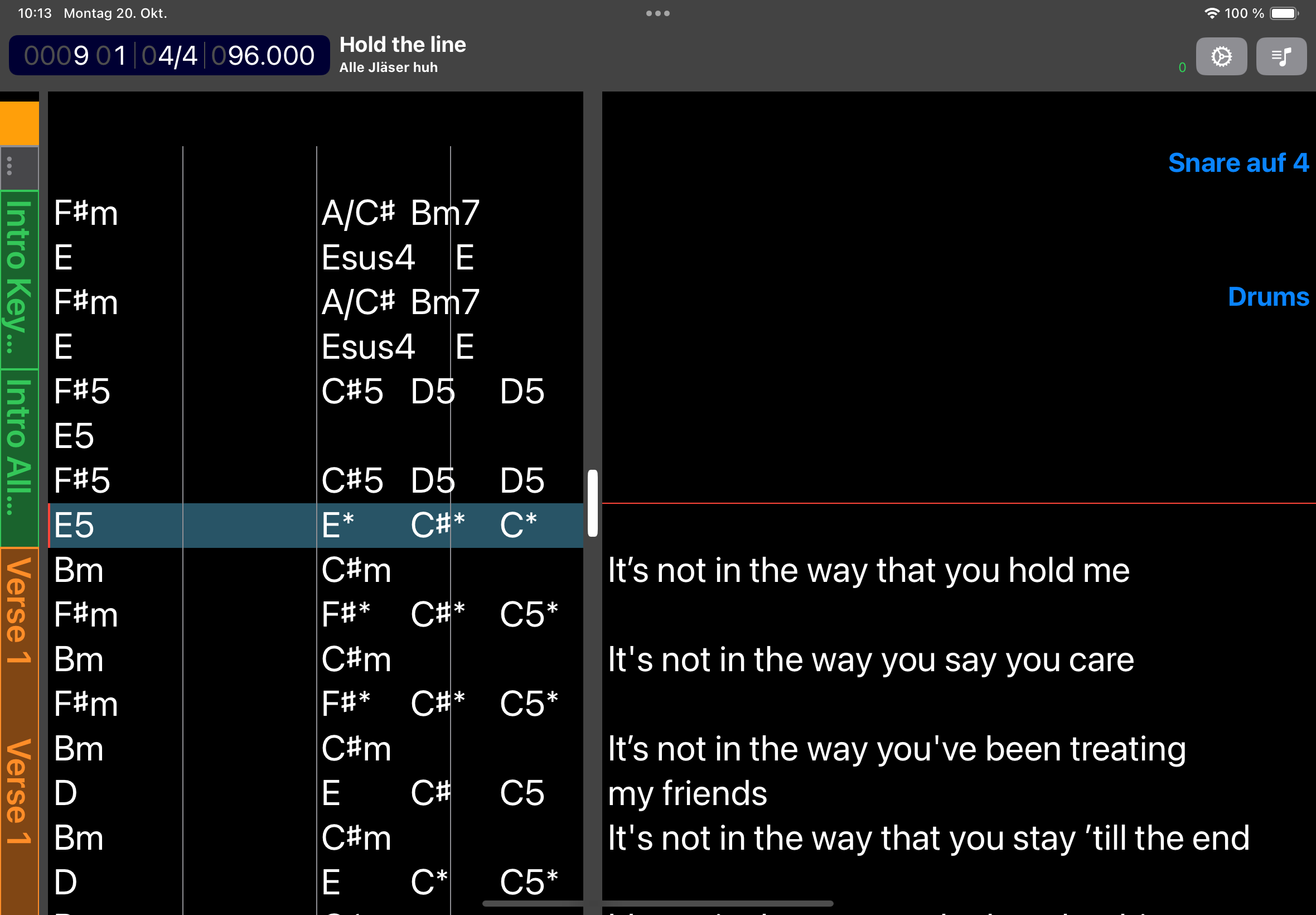
When the viewer is connect you see the main view with chords and lyrics and the transport info on the top-left and the current song name on the top-right. The parts are shown on the left hand side for orientation within the song.
The transport section shows the current bar and beat, the time signature and the current tempo.
Comments will be displayed on the right hand side.
when the song has sheet music as images those will be shown instead of chords and lyrics.
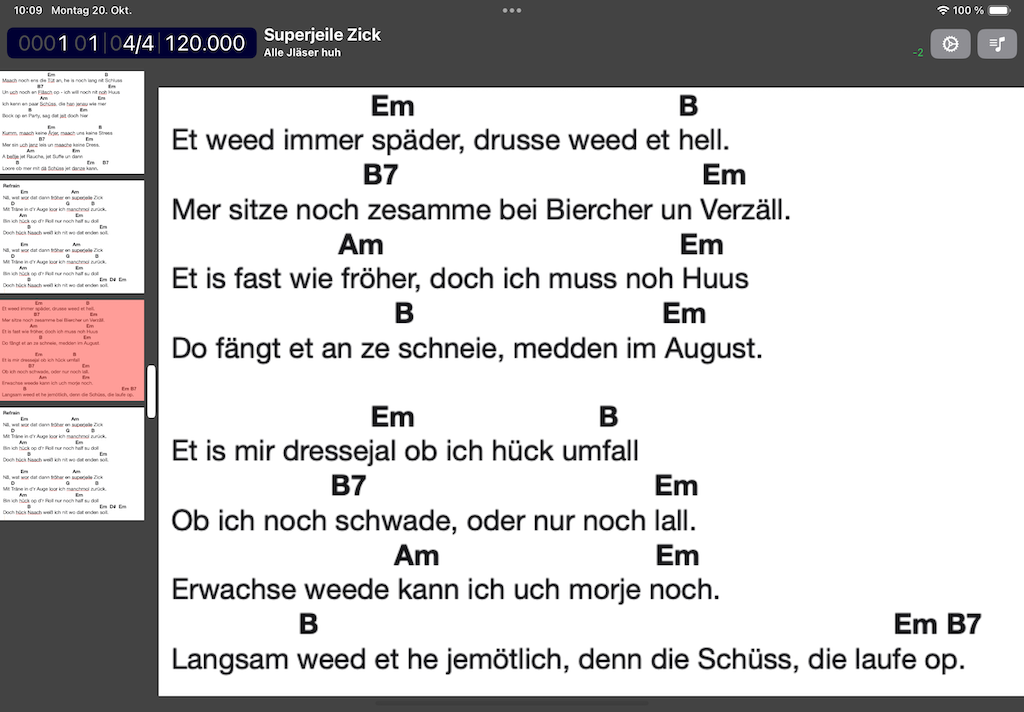
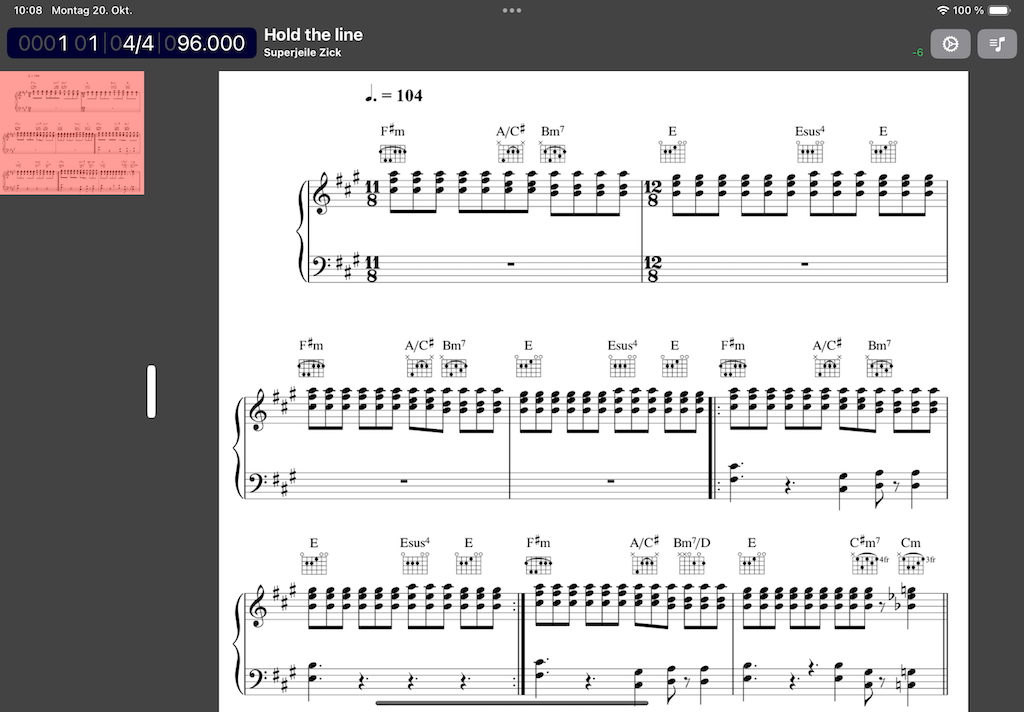
You will see thumbnails of the sheet music on the left unless you disable that in the settings to maximize the screen real estate.
The image will be scalled to fit the screen automatically. You can navigate to the next/previous image by tapping on the thumbnail.
Settings
To enter the settings button with the gear symbol in the header.
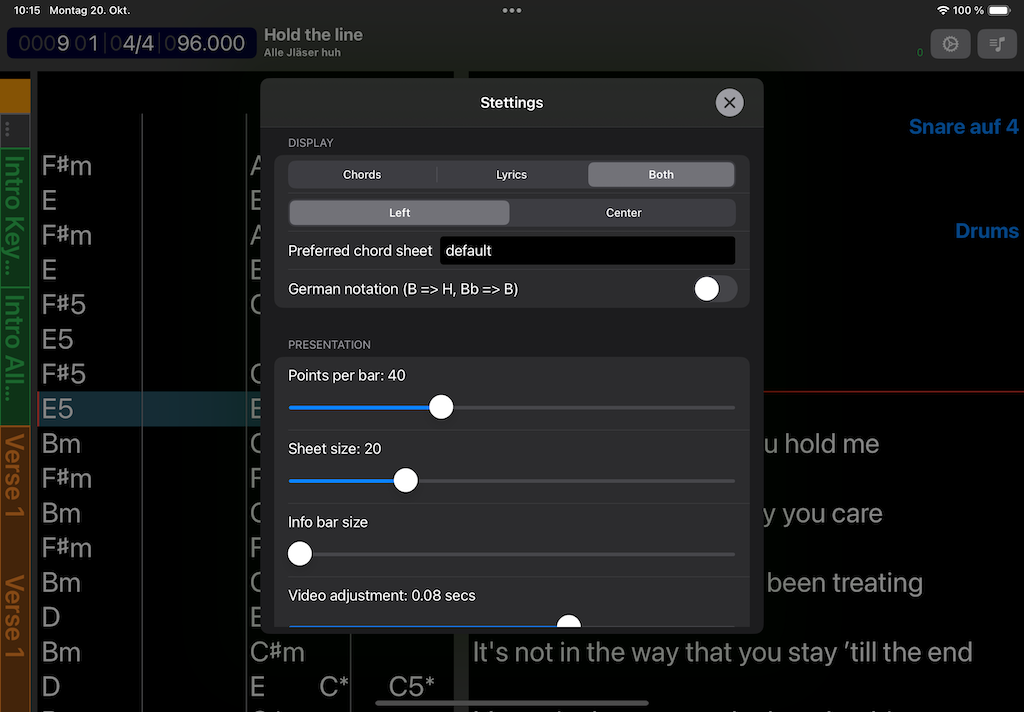
| Setting | Description | Default |
|---|---|---|
| Display | Watch chords, lyrics or both. | both |
| Preferred chord sheet | In case the song has more than the default chord sheet - which one do you want to see. | default |
| German notation | Display chord sheets in German notation. B => H, Bb => B | off |
| Points per bar | Size of a bar in points. | 40 |
| Sheet size | Font size to use when the song has text a chord sheet. | 20 |
| Info bar size | Scale the info bar at the top. | small |
| Video adjustment | Number of milliseconds to adjust rendering so that sound and video are in sync. | |
| Scale images to fit screen | Scale the images to fit the screen size otherwise they will be stacked and you can scroll. | on |
| Show image thumbnails | Show thumbnails of the sheet music images on the left side. | on |
| Viewer Name | Give the viewer a name which will be displayed on the server side so one can see which viewers are connected. | empty |
Set
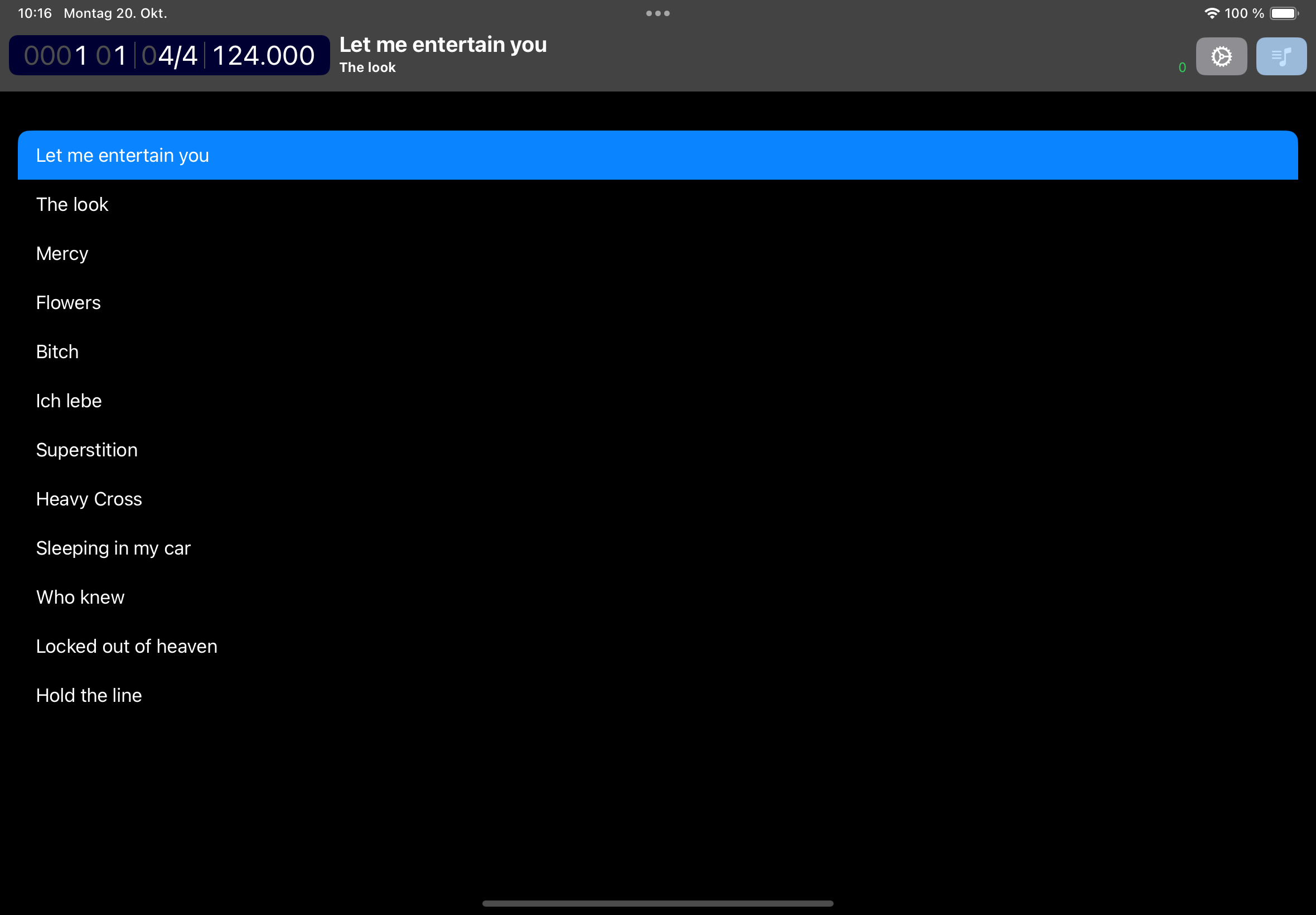
If you tap the set list button at the top-right, you can see the set list for the current set.